IP address 0.0.0.0 listed hai, isliye humein IP address ko dusre sources se dhundhna hoga.
Kuch aur:
Autopsy ke findings dekhte waqt, humein device par ek unusual application install mili hai.
Overview :
Disk Analysis & Autopsy ek medium-difficulty ka forensic challenge hai. Isme aapko ek forensic disk image ka analysis karna hota hai Autopsy tool ke through, jisme yeh pata lagana hota hai ki kaunsa malicious software install kiya gaya tha, kis user ne kiya tha, aur doosre important artifacts ko bhi identify karna hota hai.
Scenario :
Aapka task hai ki Autopsy ke through jo artifacts discover huye hain, unka manual analysis karna hai taaki neeche diye gaye questions ke answers mil sakein.
Yeh room aapko Autopsy room mein jo aapne seekha tha, usko aur achhi tarah se samajhne aur apply karne mein madad karega.
Mazaa aayega investigation mein – Happy Hunting! 🔍
Q1 :- E01 image ka MD5 hash kya hai?
Hum image ka hash Autopsy mein appropriate data source select karke aur Summary ke under Container tab mein jaakar dekh sakte hain.
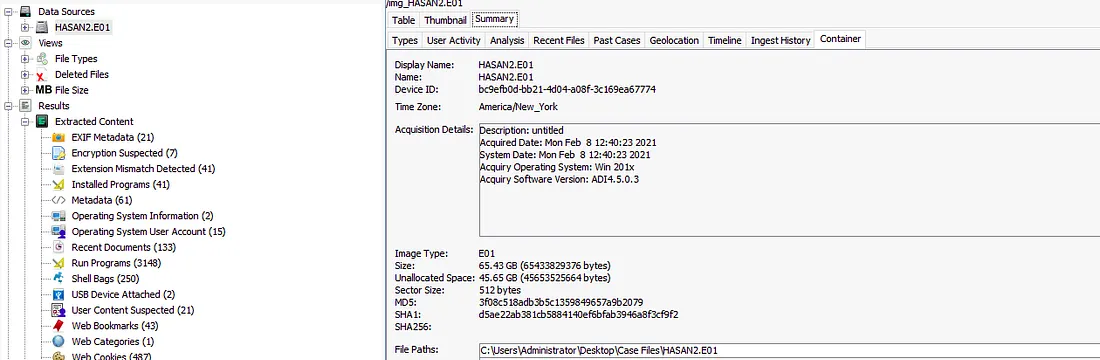
Answer: 3f08c518adb3b5c1359849657a9b2079
Q2 :- Computer account name kya hai?
Hum computer ka naam Operating System Information ke results ke andar dekh sakte hain.
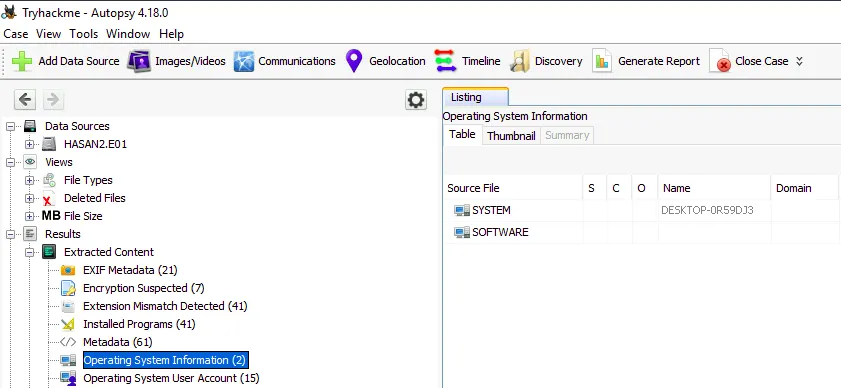
Answer: DESKTOP-0R59DJ3
Q3 :- Sabhi user accounts ki list batao. (alphabetical order mein)
Operating System Information ke results ke just neeche, humein Operating System User Accounts ka option milega, jahan se hum apna answer le sakte hain.
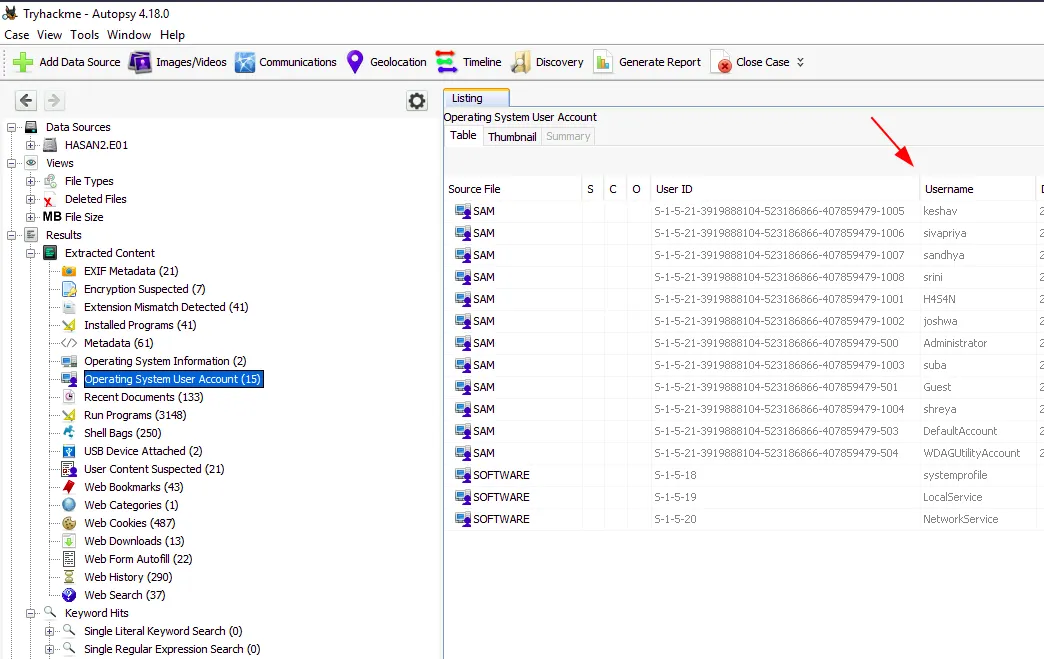
Note: Hum sirf user accounts chahte hain, isliye Guest, LocalService, DefaultAccount, etc. ko ignore kar sakte hain.
Answer: H4S4N, joshwa, keshav, sandhya, shreya, sivapriya, srini, suba
Q4 :- Kaun last user tha jo computer mein log in kiya?
Hum User Accounts ko “Date Accessed” ke hisaab se sort karke apna answer paa sakte hain.
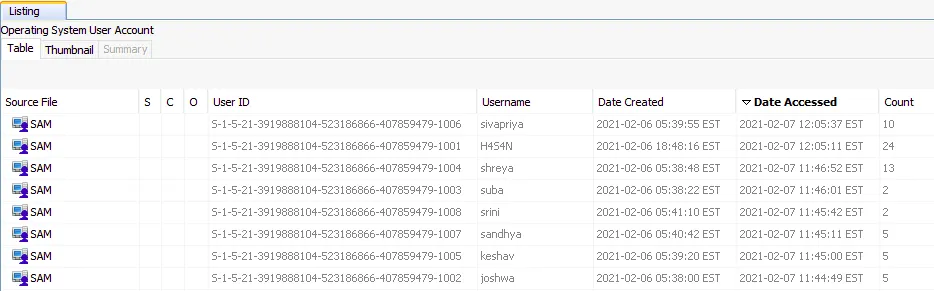
Answer: sivapriya
Q5 :- Computer ka IP address kya tha?
Kyuki hum ek Windows machine ki image ke saath kaam kar rahe hain, hum Windows Registry mein network adapters se associated IP address dekh sakte hain. Hum registry ko Autopsy ke andar se bhi access kar sakte hain.
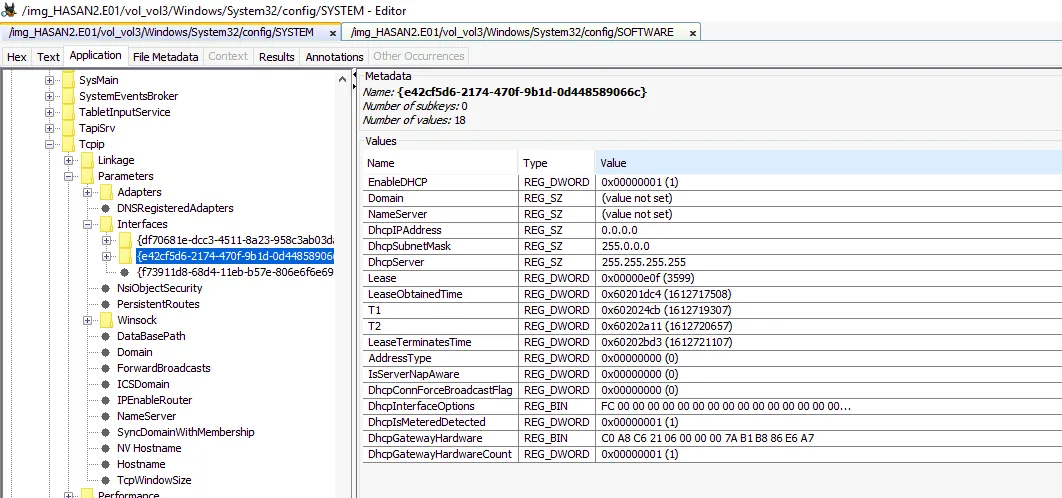
IP address 0.0.0.0 listed hai, isliye humein IP address ko dusre sources se dhundhna hoga.
Kuch aur:
Autopsy ke findings dekhte waqt, humein device par ek unusual application install mili hai.
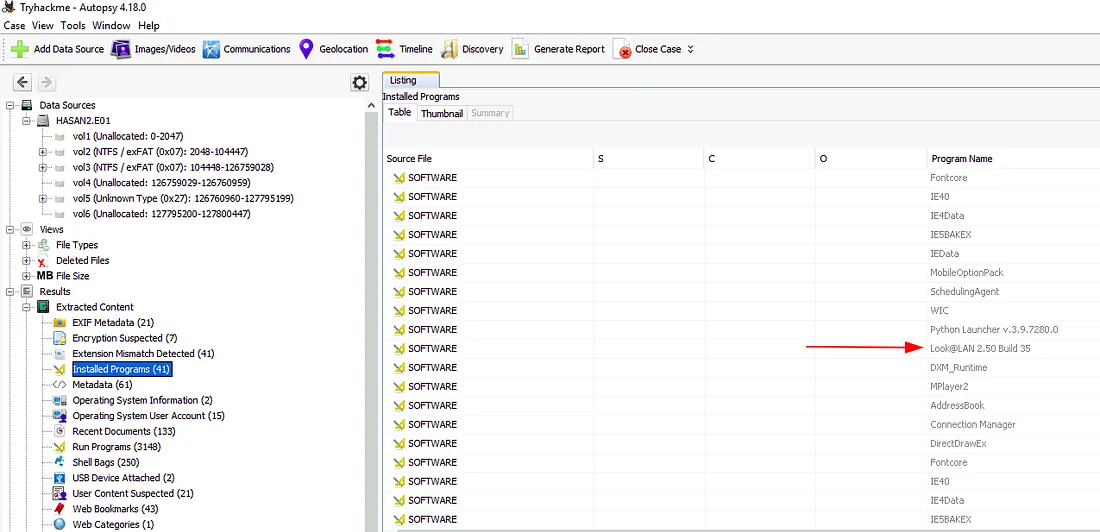
Executable name ko search karne par pata chalta hai ki yeh ek network monitoring tool hai, isliye ab hum dekhte hain ki kya isne koi logs generate kiye hain.
Is tool ka directory humein “Program Files (x86)” ke andar milta hai. Folder ke andar files check karte waqt sirf ek file alag se noticeable hai – ek .ini file.
Hum is file ko Autopsy ke andar hi select karke dekh sakte hain.
Note:
🔹 .ini files ka use initial configurations set karne ke liye hota hai.
🔹 Agar file select karne ke baad text nahi dikh raha ho, toh Indexed Text tab par switch karo.
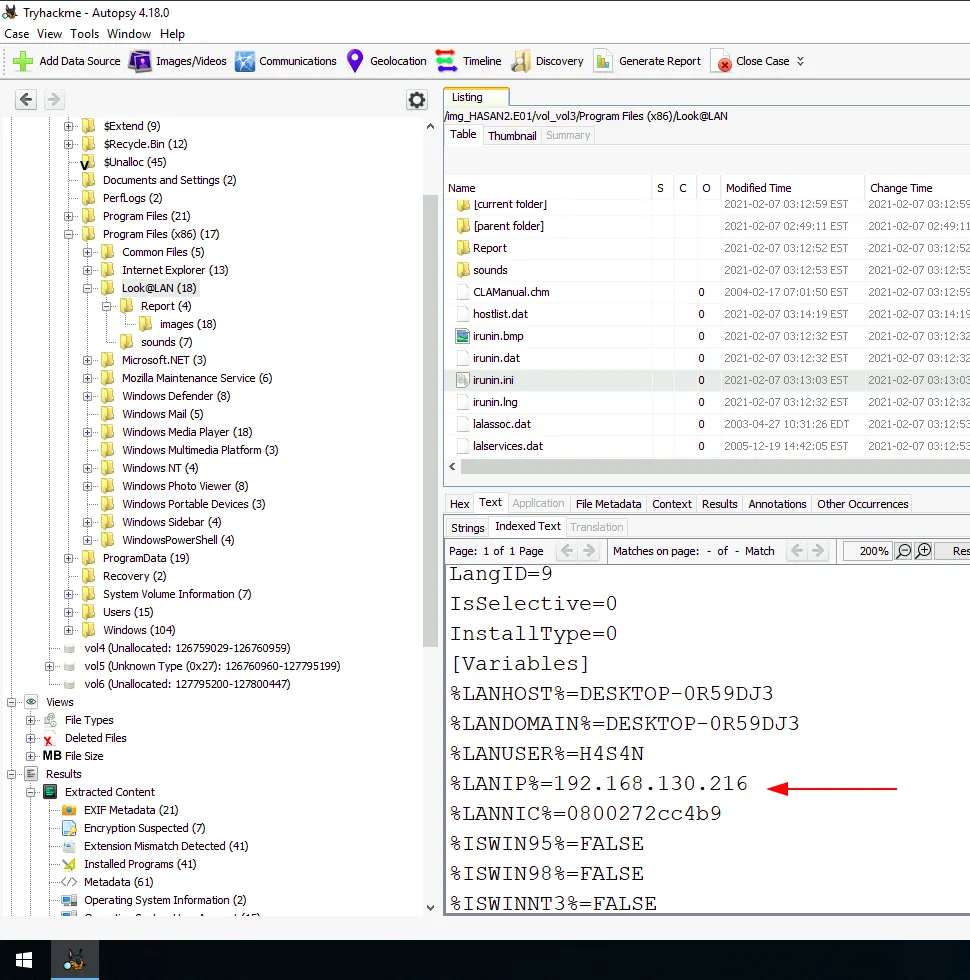
Answer: 192.168.130.216
Q6 :- Computer ka MAC address kya tha? (XX-XX-XX-XX-XX-XX format mein)
MAC address easily miss ho sakta hai – yeh registry mein present nahi tha, aur .ini file mein “mac” keyword search karne par bhi koi result nahi mila.
Lekin agar hum IP address ke aaspaas ke fields ko dhyan se dobara dekhein, toh humein ek field dikhega “LANNIC”, jahan MAC address diya hota hai.
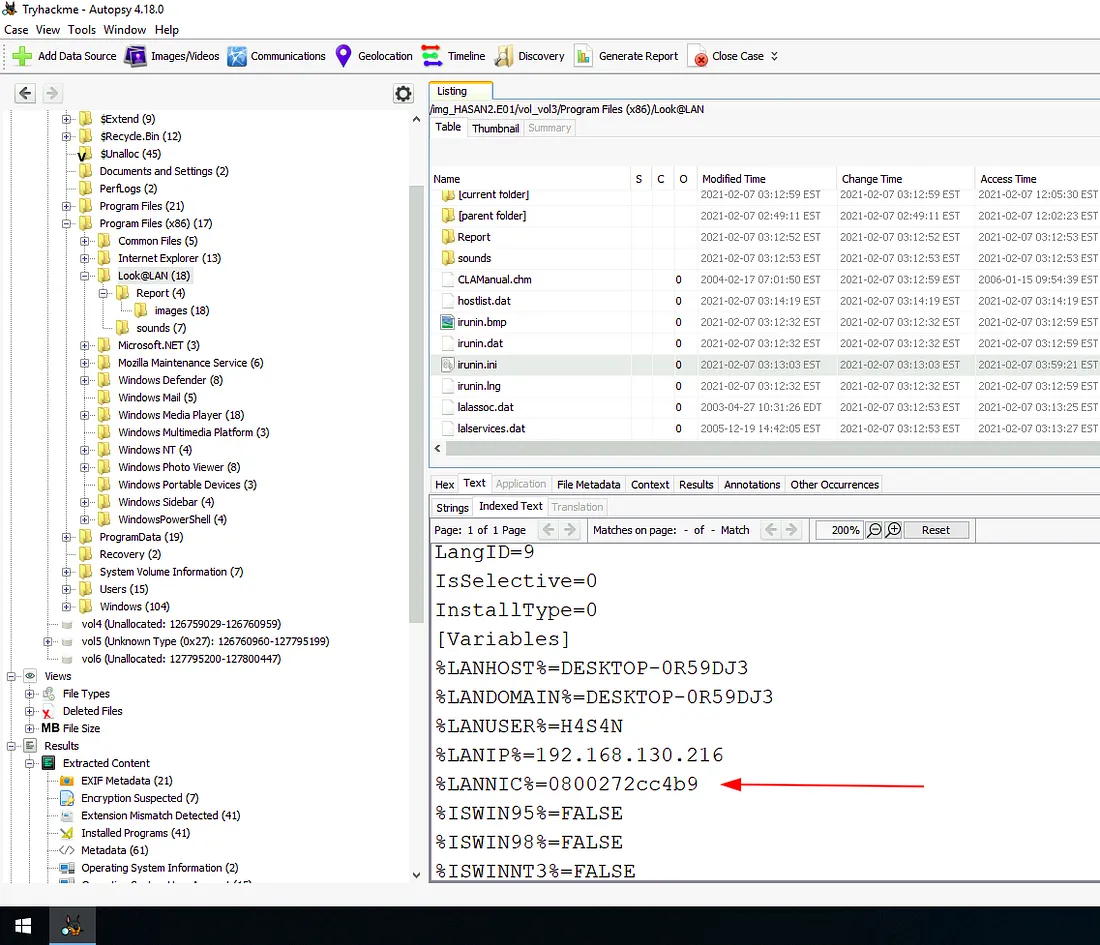
Answer: 08–00–27–2c–c4–b9
Q7 :- Is computer par network card ka naam kya hai?
Iske liye humein dobara registry mein jaana hoga.
NIC (Network Interface Card) ka naam hum following registry path mein dhoondh sakte hain:
SOFTWARE\Microsoft\Windows NT\CurrentVersion\NetworkCards
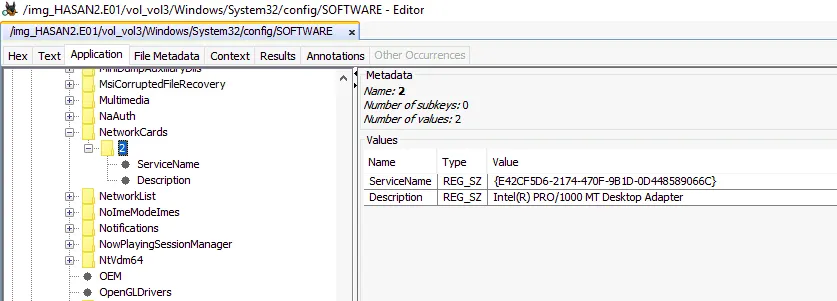
Answer: Intel(R) PRO/1000 MT Desktop Adapter
Q8 :- Network monitoring tool ka naam kya hai?
Jaise ki humne dekha, installed tool ka naam Look@LAN hai.
Answer: Look@LAN
Q9 :- Ek user ne Google Maps ka location bookmark kiya tha. Us location ke coordinates kya hain?
Is question ka answer humein Autopsy ke Web Bookmarks ke results mein mil jaayega.

Answer: 12°52’23.0″N 80°13’25.0″E
Q10 :- Ek user ka full name uske desktop wallpaper par likha hua hai. User ka full name kya hai?
Windows user profile information ko NTUSER.dat file mein store karta hai, jo unke home directory ke andar hoti hai. Yeh jaankar hum yeh determine kar sakte hain ki user ka wallpaper image kya hai aur kya us image mein unka naam visible hai.
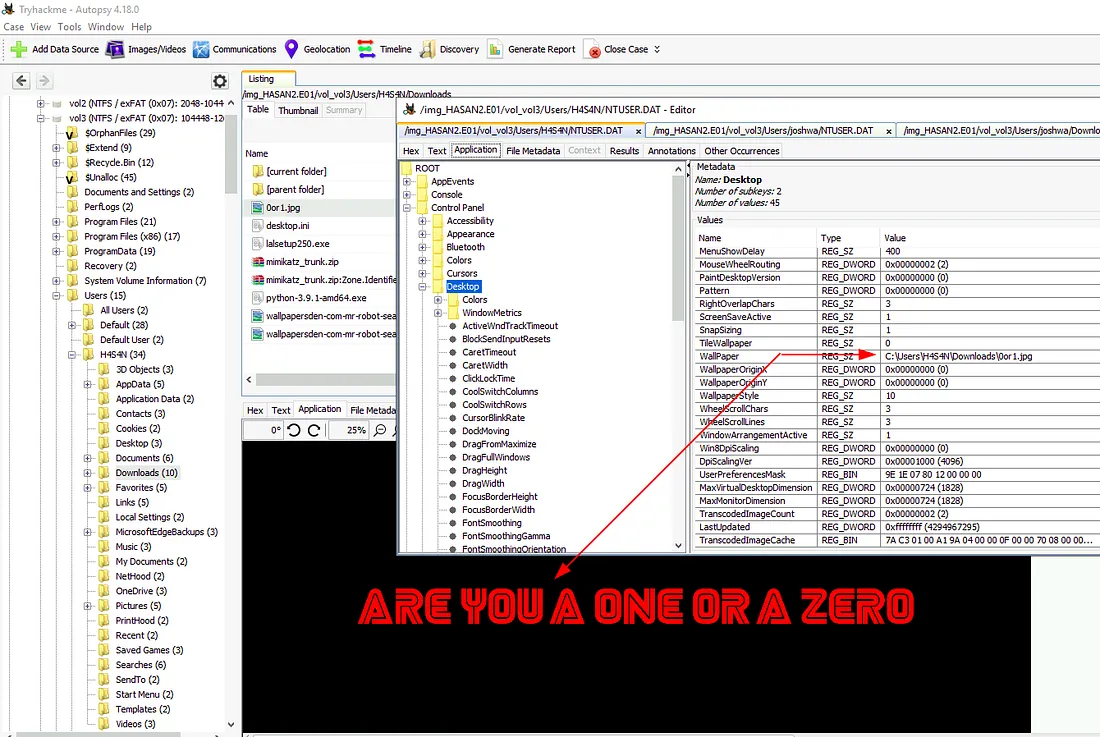
List mein pehla user H4S4N hai. NTUSER.dat file ke through wallpaper ka source file determine karne ke baad humne image check kiya.
Is wallpaper image mein koi visible name nahi tha, isliye hum agle user ki taraf badhte hain.
Next user list mein hai Joshwa, aur is baar humein match mil gaya hai.
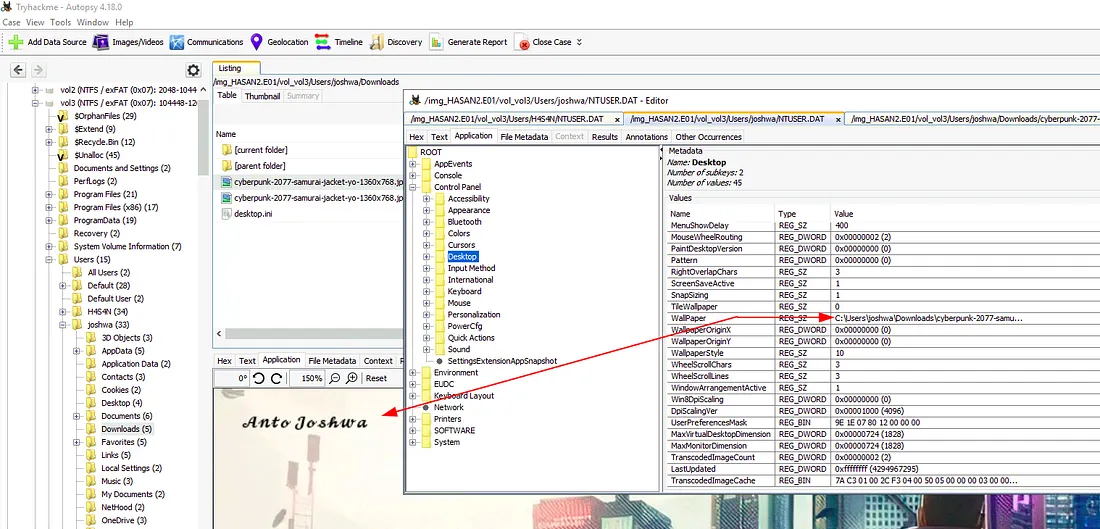
Hum image mein ek naam clearly dekh sakte hain, aur uska last name user ke username se match karta hai, toh yahi hamara answer lagta hai.
Answer: Anto Joshwa
Q11 :- Ek user ke desktop par ek file thi jisme ek flag tha, lekin usne PowerShell ka use karke us flag ko change kar diya. Pehla flag kya tha?
PowerShell ka command history file APPDATA\Microsoft\Windows\PowerShell\PSReadLine\ConsoleHost_history.txt mein store hota hai, toh wahi humari search ka main focus hoga.
Lekin usse pehle, humein yeh pata karna hoga ki file ka naam kya hai aur user kaun tha jisne yeh modification kiya.
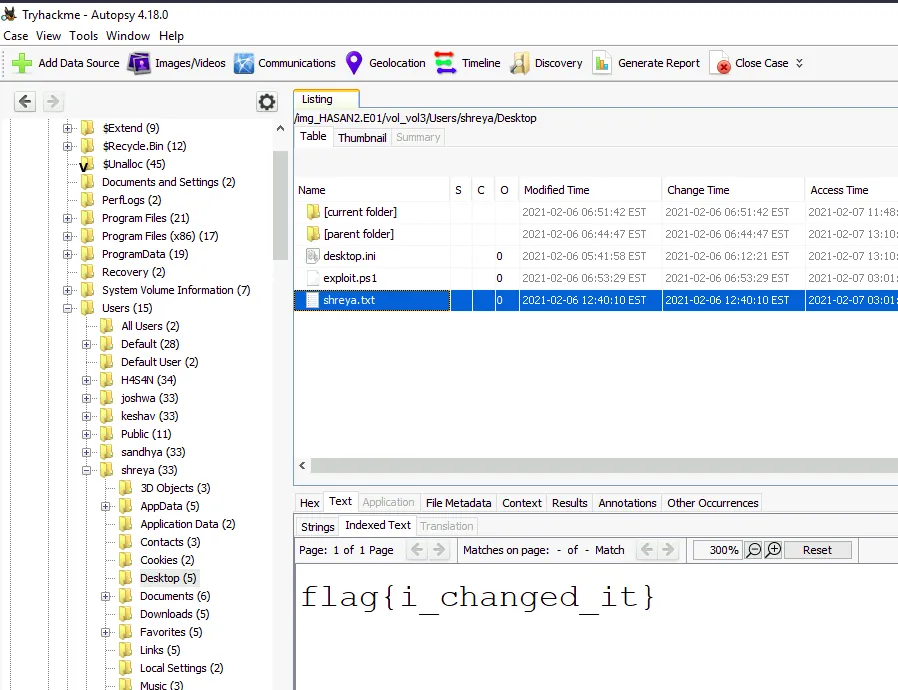
Shreya user ke kuch Desktop directories check karne ke baad humein flag milta hai uski Desktop directory ke andar. Ab jab humein user ka pata chal gaya hai, toh hum PowerShell history check karenge us account ke liye.
Note:
Shreya ke Desktop par ek PowerShell script bhi mili hai jiska naam hai exploit.ps1 — isko bhi humein aage ke analysis ke liye yaad rakhna chahiye.
Jaise expect kiya tha, humein PowerShell history mil jaati hai pehle se bataye gaye path par.
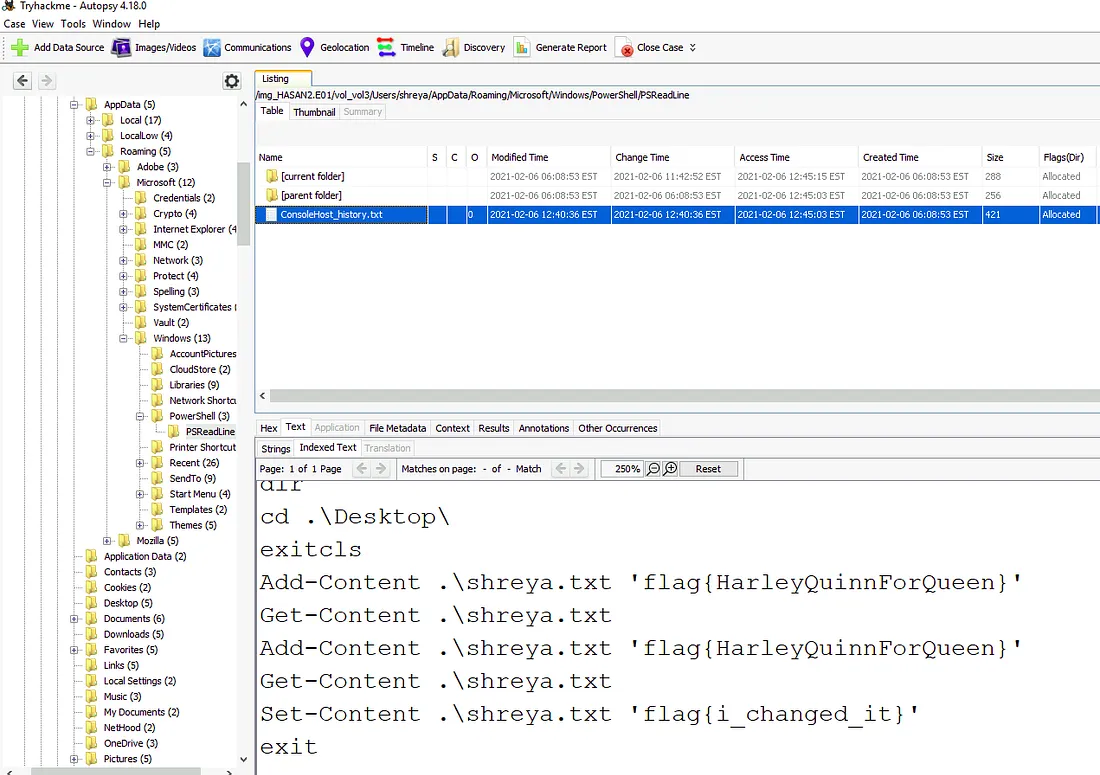
Answer: flag{HarleyQuinnForQueen}
Q12 :- Wahi user ne ek exploit use karke system par privilege escalation kiya. Device owner ke liye kya message tha?
Pichle question mein humne ek PowerShell script notice ki thi jiska naam tha exploit, toh ab hum uske contents ko dekhte hain.
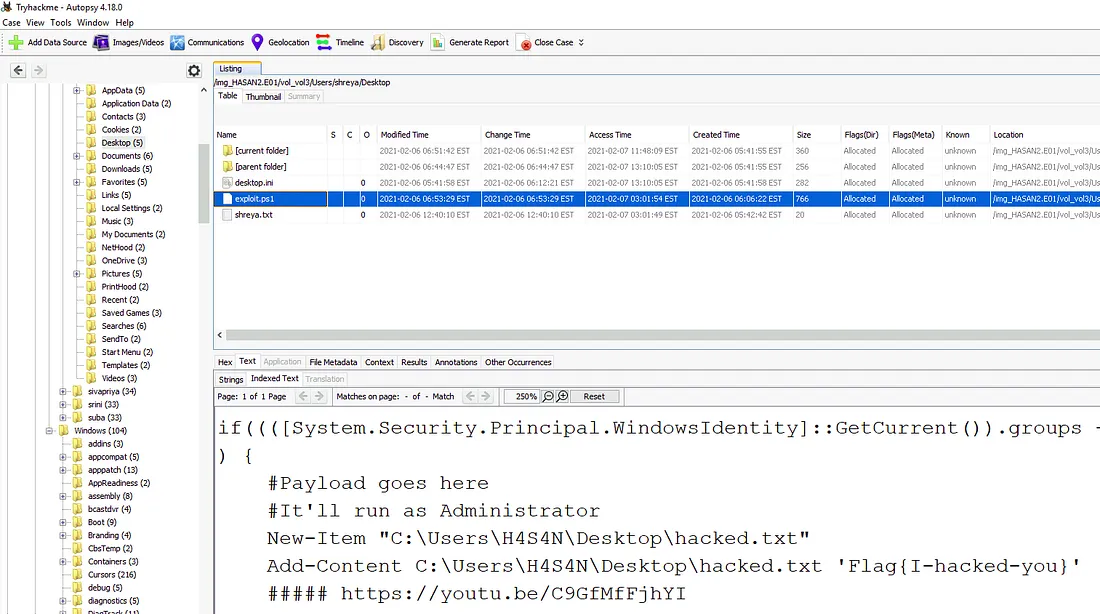
Answer: flag{I-hacked-you}
Q13 :- System mein 2 hack tools jo passwords par focus karte hain, woh kaunse hain? (alphabetical order mein)
Image mein humein Mimikatz ke multiple signs milte hain, jo shayad hum pehle hi notice kar chuke hain, aur zip file H4S4N’s Downloads folder mein located hai.
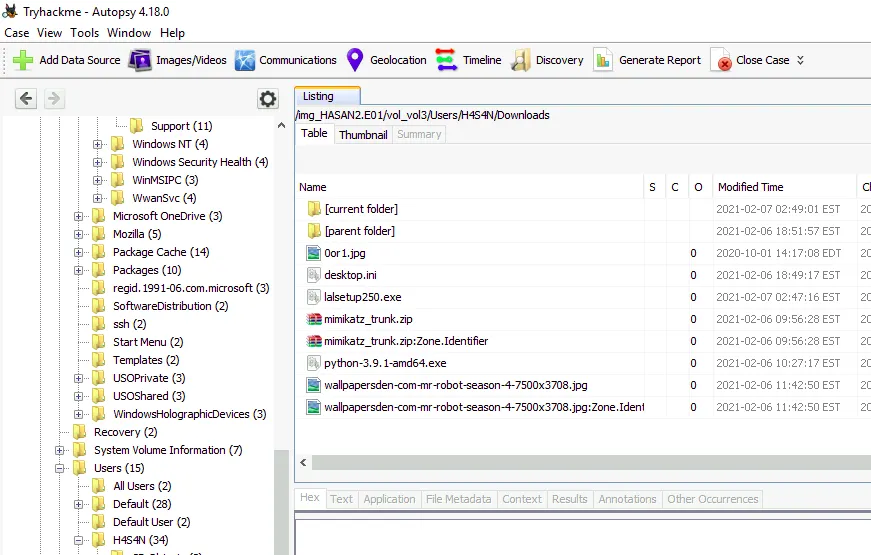
Dusra executable thoda elusive hai. Browser history, downloads, web searches, run programs, installed programs, recent documents, etc. ko check karne ke baad bhi humein koi clue nahi milta.
Ek log source tha jise maine pehle socha nahi tha, Windows Defender. Ab humare paas ek goal hai, toh humein yeh pata karna hoga ki Defender apne alerts kaha record karta hai.
Thodi Googling ke baad humein ek reference milta hai:
C:\ProgramData\Microsoft\Windows Defender\Scans\History, toh hum wahan try karenge.
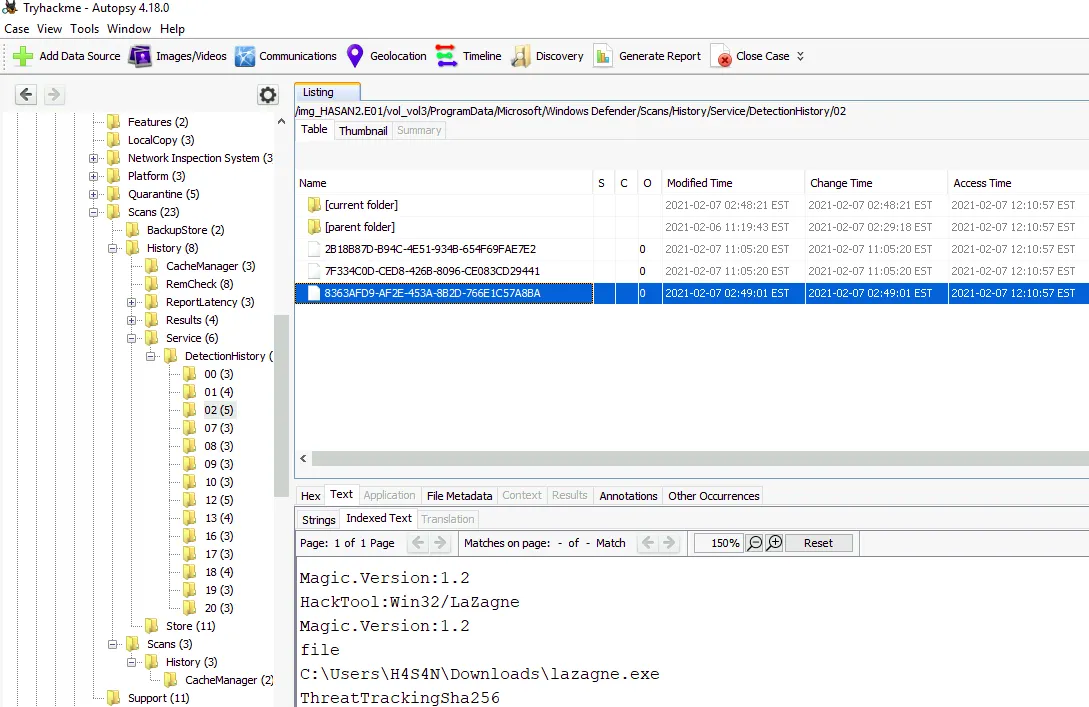
Is directory mein files ko dekhte hue humein mimikatz ke liye kai alerts milte hain, jo lazagne.exe ke alert se pehle aaye hain. Thodi si Googling se humein pata chalta hai ki yeh ek aur password-dumping tool hai.
Answer: Lazagne, Mimikatz
Q14 :- Is computer par ek YARA file hai. File ko inspect karo. Author ka naam kya hai?
Hum File Search By Attribute tool ka use kar sakte hain (jo Tools drop-down menu mein milta hai) taaki hum .yar aur .yara files ko search kar sakein.
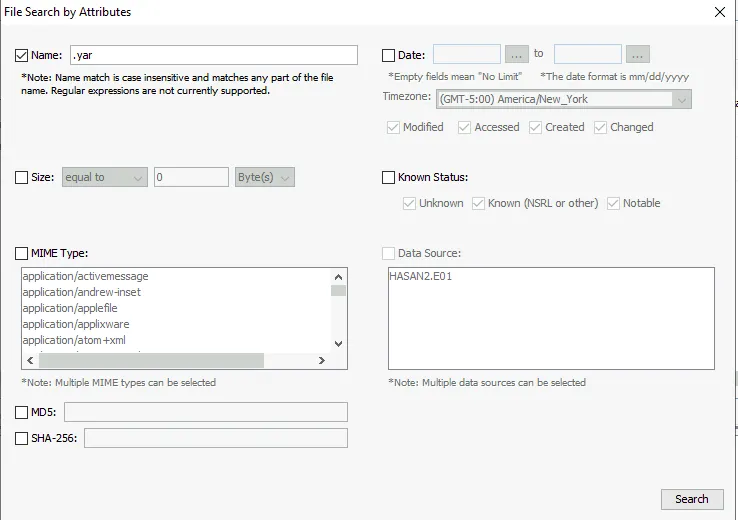
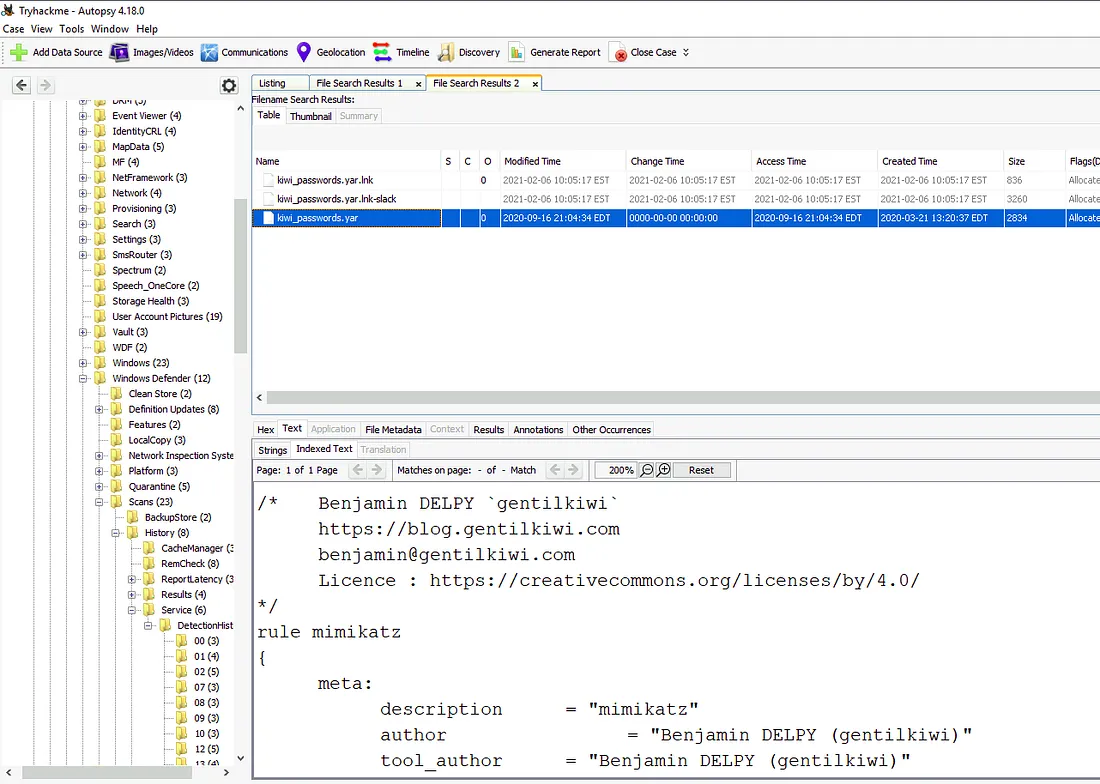
File search se humein ek hi .yar file ke liye teen references milte hain, toh hum un references ka data inspect karenge taaki humein apna jawab mil sake.
Answer: Benjamin DELPY (gentilkiwi)
Q15 :- Ek user ne domain controller ko MS-NRPC based exploit ke saath exploit karne ki koshish ki thi. Humne jo archive file find ki thi, uska filename kya hai? (answer mein spaces bhi include karna hai)
Agar hum MS-NRPC exploits ko search karein, toh Zerologon naam ka exploit kaafi popular hai. Hum dekhenge agar humein keyword search se koi result milta hai.
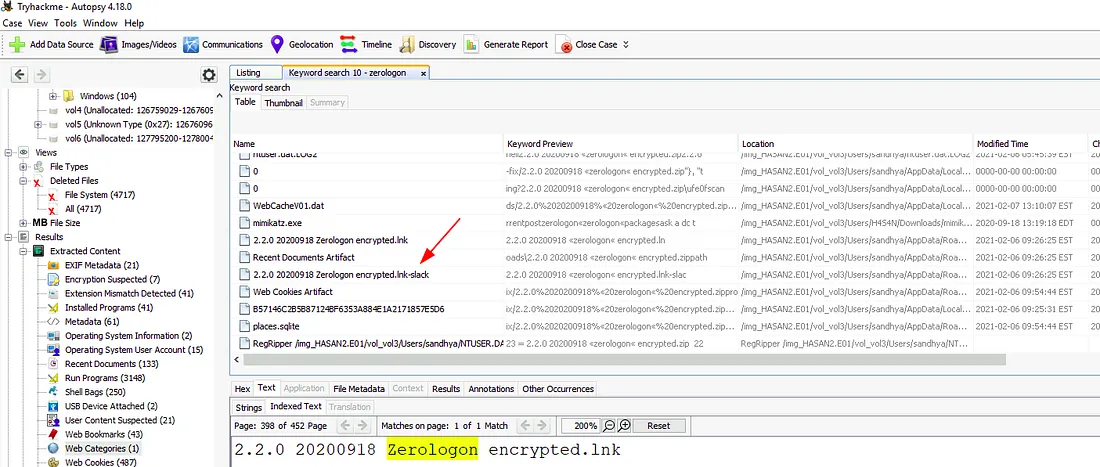
Aur humein ek Zerologon exploit ka zipped file milta hai. Halanki file delete ho gayi lagti hai, par humein kaafi evidence milta hai ki yeh sandhya ke download folder mein thi.
Answer: 2.2.0 20200918 Zerologon encrypted.zip
Conclusion: Yeh ek interesting challenge tha, kuch questions simple the, lekin kuch mein user activity, registry, aur alternative sources of evidence ko deeply explore karna pada. Q13 thoda tough tha, lekin main aage se Windows Defender ke scan history ko future investigations ke liye zarur yaad rakhunga.
